1140Merging Data and Automated Workflows in a Affinity Studio

Tested with Affinity Studio April '26 (4425) on MacOS 14.8.3

Problem: How to automate Catalogue Production in Affinity

Creating a catalogue involves copying and pasting assests, including texts, captions, names and images from data sources into Affinity. If the data source change, that process had to be repeated manually.

Solution: Data Merge!

Affinity offers the Data Merge feature which allows for the importing of structured data and the automatic generation of pages.

Overview of the Data Merge Process

  1. Create a source data file, in our example case we use Google Sheets to make a spreadsheet, which can be exported as CSV. Other source data types: Plain Text, CSV, TSV, JSON, XLSX

  2. Create a Affinity Layout document, design the fields you want to be populated with data from the CSV file. Images can be imported from URLs or from folder relative to the main Affinity document.

  3. In Affinity, use the from Window → Layout → Data Merge panel to import the CSV file and bind the data to the visual elements.

  4. Generate a new Affinity document based to the design & data source.

1. Creating the Data Source

Any structured data source can be used, we will be using Google Sheets, as it allows for collaborative editing. Data from Google Sheets can be exported as CSV by doing File → Download → Comma-separated values (.csv).

2. Importing the CSV in Affintiy

2.1. Opening the Data Merge Panel

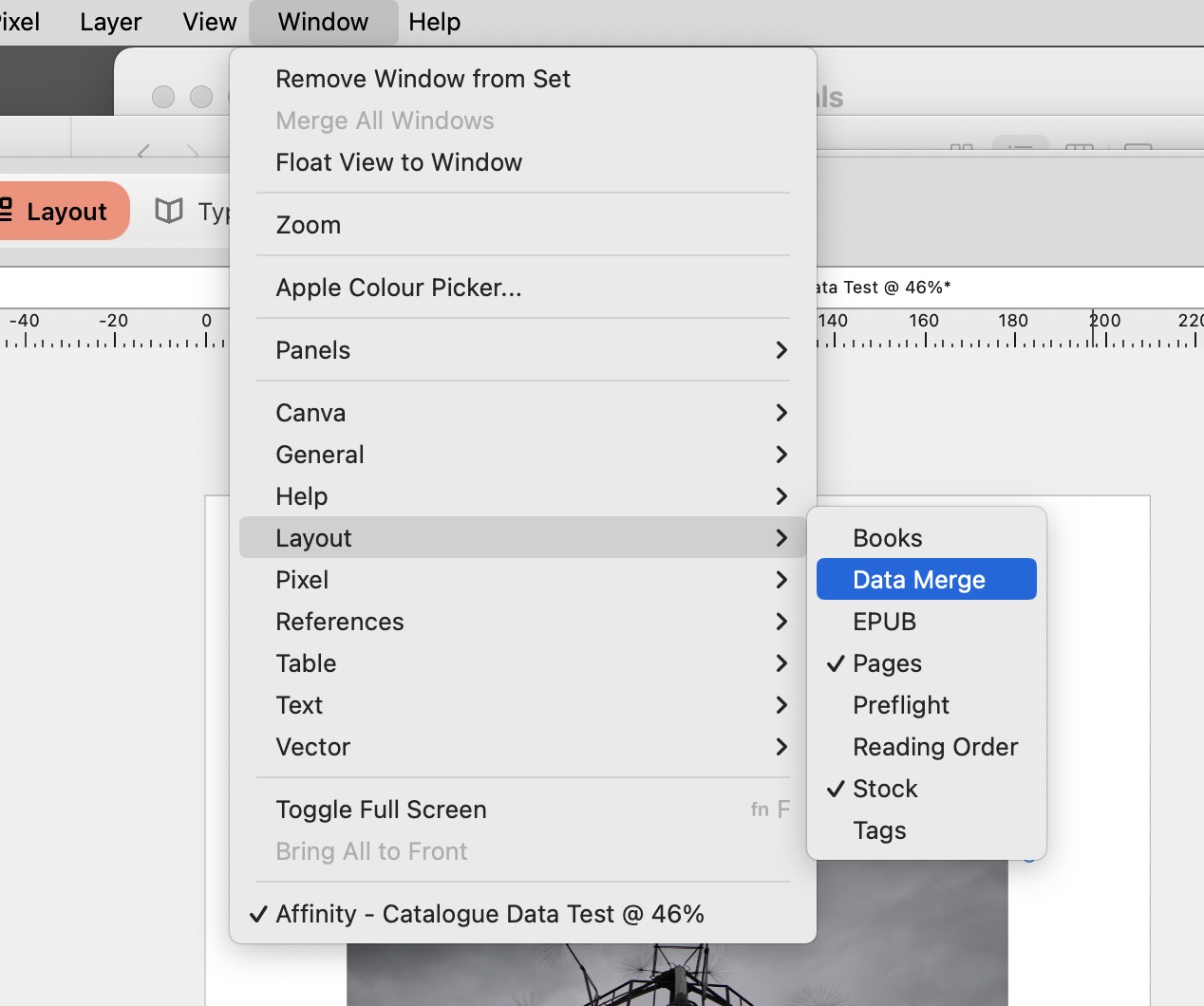
The Data Merge Panel can be found in Window → Layout → Data Merge.
2.2. Adding the Data File

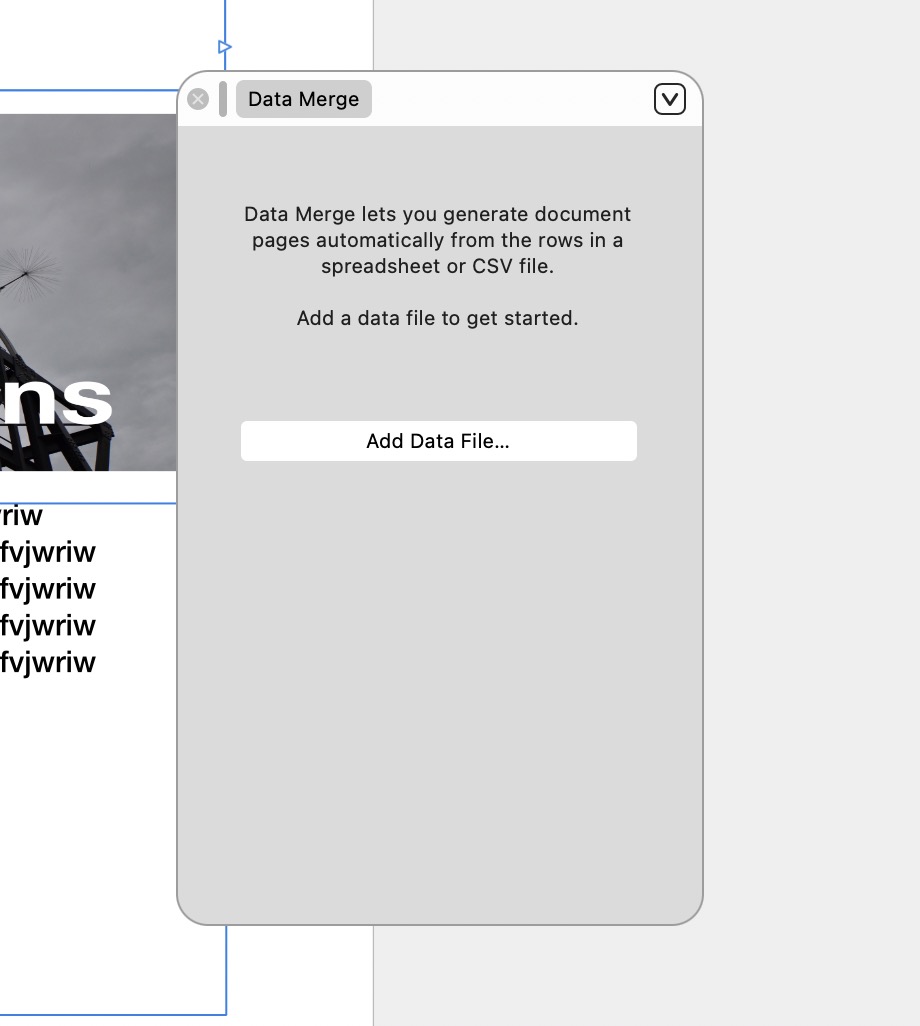
Clicking the Add Data File... Button opens up a dialogue, which allows you to upload your CSV file
2.3. Successful Import

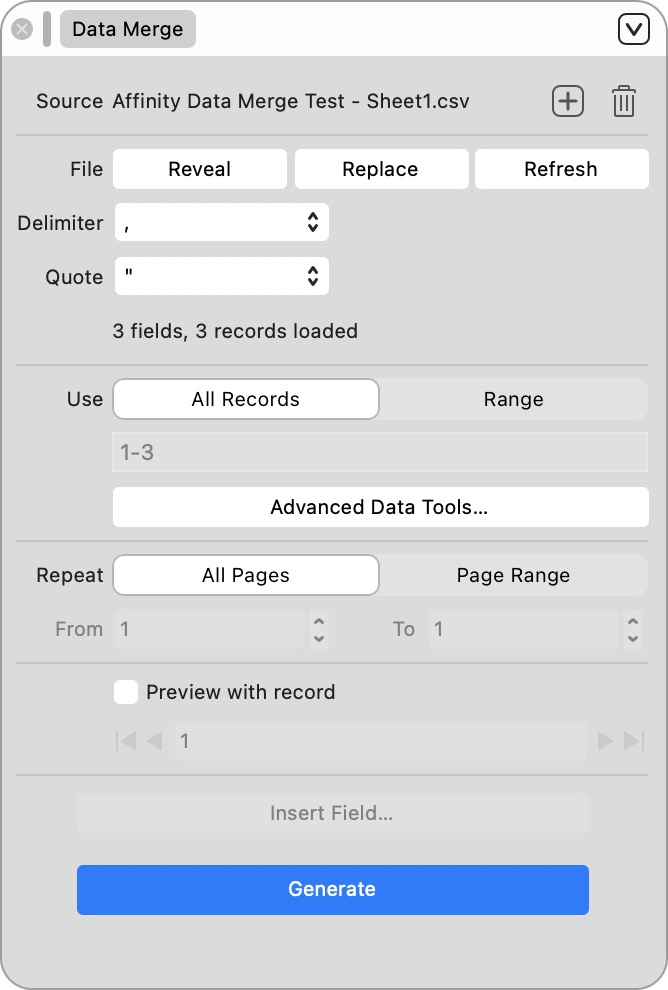
Once imported, you can step through - and if necessary post-process - the data.
2.4. Binding Data Fields to Design Elements

This is where the magic happends:

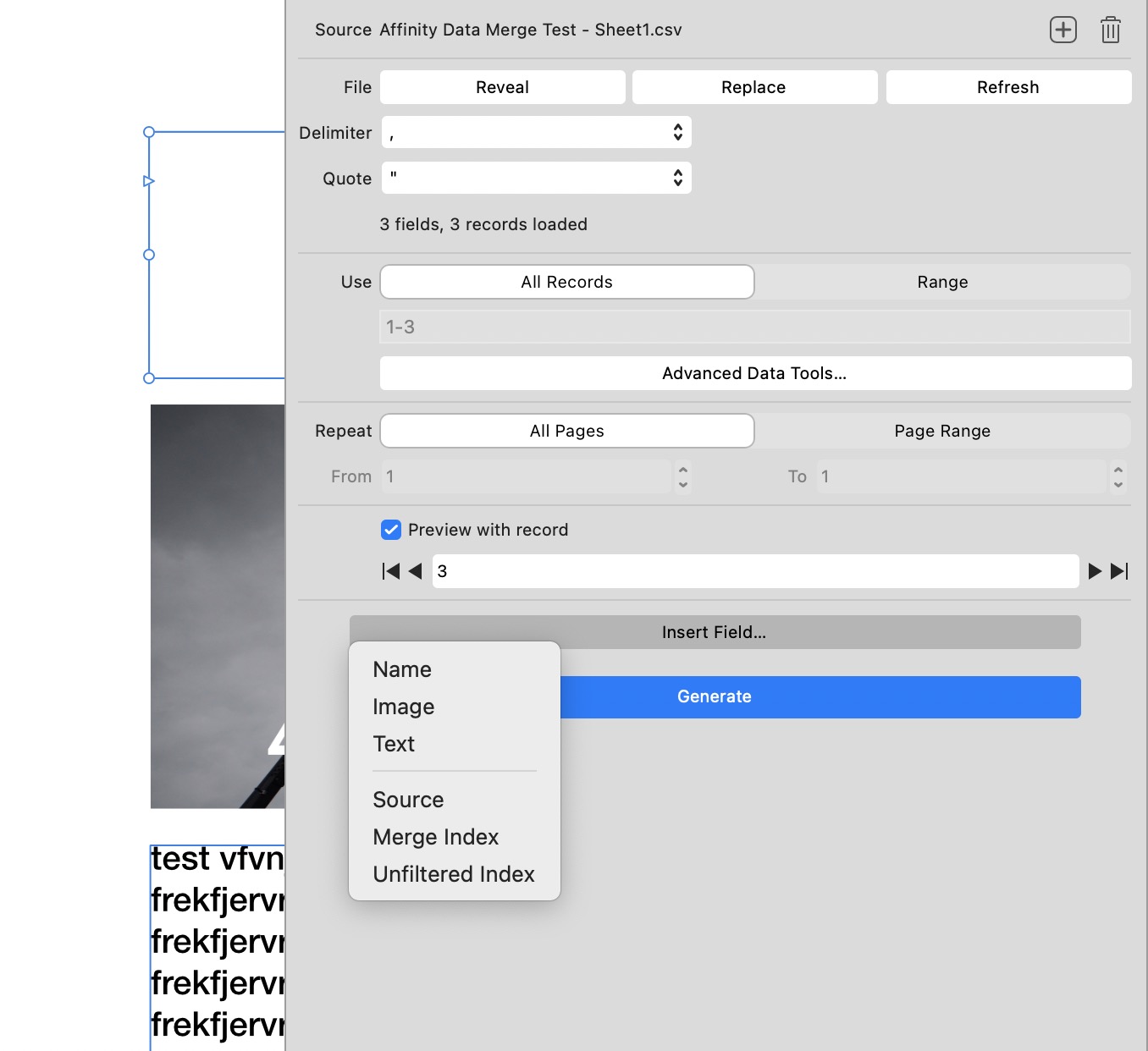
  • Select the place where you want the data from the data field inserted. This can be within a textbox or in case of images, in the picture frame.
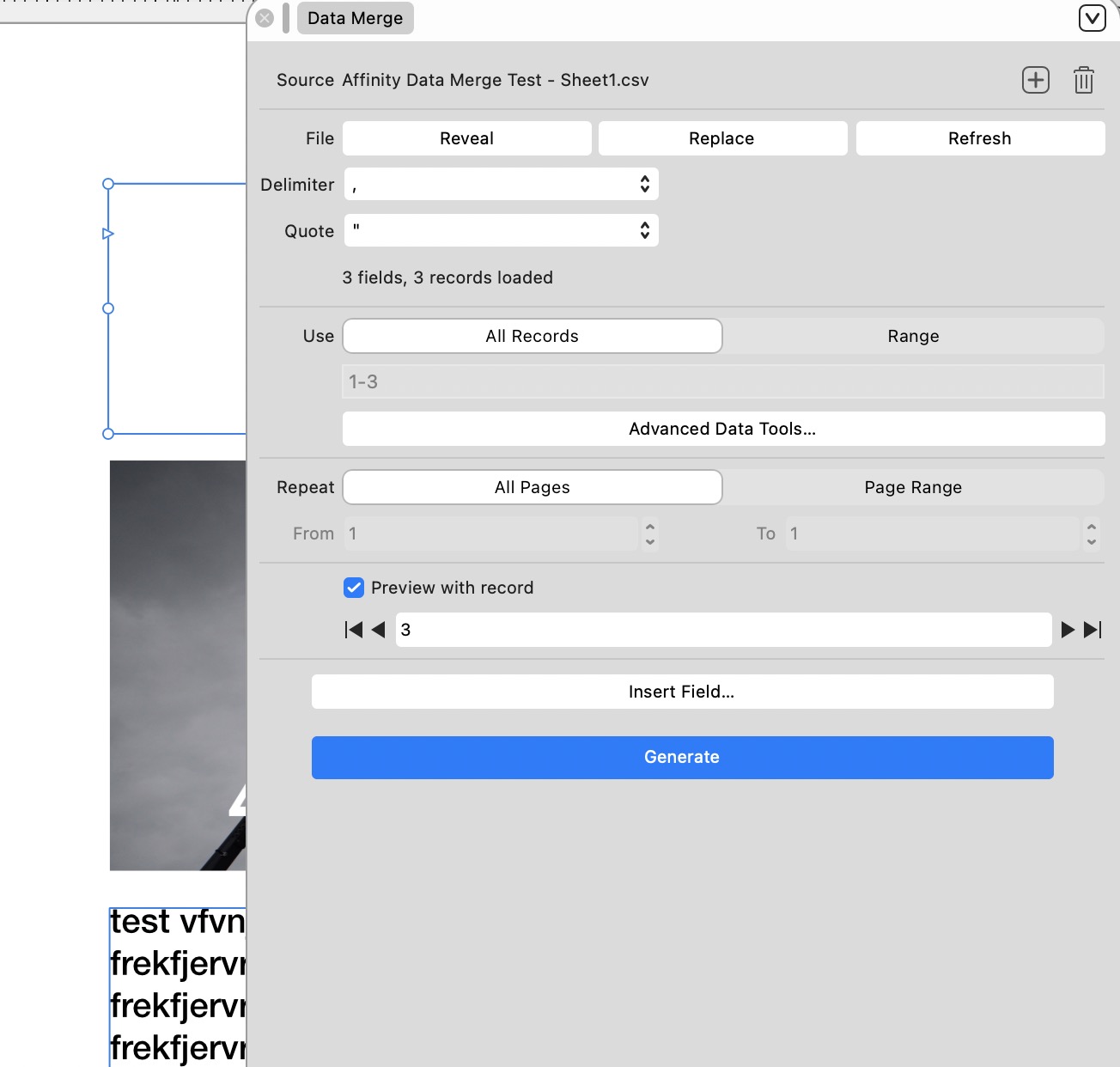
  • Select which field you want to bind. In our example CSV file, we only have Name, Image and Text.

2.5. Stepping through and Preview

Use the left/right arrows (◀︎ ▶︎) to step trough the data and see how it fits your design.

2.6. Generate

Once you are happy, press the Generate Button. This will take your design as a template and merge it with the data file, creating a new Affinity document. That means, that when the data changes, and data merge is run again, another new document will be created.

Files

Challenges

Can a generated document be updated when the data source changes?

No. Each time the Generate Button in the Data Merge panel is clicked a new document is generated.

Can I import text styles from the CSV file?

No, that's not possible. However, each field can be given the desired styles. In the case of longer text with embedded styles, a workaround it to use Markdown syntax to indicate **bold** and _italic_ in the source file and then do Find & Replace in the Generated Document.

818Swapping div elements with jQuery

I found myself in need for swapping div elements. On the one hand, elements, which are situated next to each other (in the code), on the other hand I also wanted to swap only sub-elements of these divs.

How can this be done with jQuery?

Let's start with the first case, swapping adjunct divs.

...
...
...
...
...
// get a handle on the elements
var elements = $(".elements");

// let's assume, we want to swap #e2 and #e3
var leftElement = $(elements[2]);
var rightElement = $(elements[3]);

leftElement.insertAfter(rightElement); // inserts leftElement after rightElement

insertAfter takes the object, with with the method is associated (leftElement) and inserts the object's div after the div specified as a method argument. Here's more on SO about it.

In a previous version of the code, i mistakenly though, that it's necessary to replace the leftElement with the right one prior to inserting...

// NG
leftElement.replaceWith(rightElement);
leftElement.insertAfter(rightElement);

This also seemed to work ok. Only later I found out, that any jQuery data() objects connected to the rightElement will get wiped when replaceWith is being called.

Finally you'll also want to do an update to the elements array, to get them in their new order:

var elements = $(".elements");

355Programmatically capture UIView

Ok, a bit late to the party. Apple officially approved the use of UIGetScreenImage().

After carefully considering the issue, Apple is now allowing applications to use the function UIGetScreenImage() to programmatically capture the current screen contents. The function prototype is as follows:
CGImageRef UIGetScreenImage(void);

https://devforums.apple.com/message/149553

How to caputure a view, ideally the live input of the camera? Unfortunaly there's no clean and clear interface for that. Only the undocumented UIGetScreenCapture() call:

http://www.iphonedevsdk.com/forum/iphone-sdk-development/11219-screenshots-we-allowed-use-uigetscreenimage.html

http://stackoverflow.com/questions/1531815/takepicture-vs-uigetscreenimage

http://svn.saurik.com/repos/menes/trunk/iphonevnc/iPhoneVNC.mm

http://blogs.oreilly.com/iphone/2008/10/creating-a-full-screen-camera.html

But since UIGetScreenCapture() is an undocumented call (in 3.1), here are official ways to get the content of a view.

UIGraphicsGetImageFromCurrentImageContext();

http://icodeblog.com/2009/07/27/1188/

http://www.elrepositorio.com/?p=31

347UIImage → pixelData → UIImage Rountrip

The questions is rather simple: How to manipulate single pixels of an UIImage? The answer is rather long; but includes a joyful trip into Quartz 2D Graphic land...

// load image, convert to CGImageRef
UIImage *c = [UIImage imageNamed:@"c.png"];
CGImageRef cRef = CGImageRetain(c.CGImage);

// png alpha to mask
NSData* pixelData = (NSData*) CGDataProviderCopyData(CGImageGetDataProvider(cRef));
// image raw data

//NSData* pixelDataRep = UIImagePNGRepresentation(c);
// compressed png data

//NSLog(@"pixelData %i", [pixelData length]);
//NSLog(@"pixelDataRep %i", [pixelDataRep length]);
//NSLog(@"pixelDataRep equal to pixelData: %@", [pixelData isEqualToData:pixelDataRep] ? @"YES" : @"NO");

//UIImage* newImage = [UIImage imageWithData:pixelData];
//[newImage drawInRect:CGRectMake(10, 340, 65, 65)];

//NSLog(@"pixelData %@", pixelData);

unsigned char* pixelBytes = (unsigned char *)[pixelData bytes];
// return pointer to data

// step through char data
for(int i = 0; i < [pixelData length]; i += 4) {
    // change accordingly
    pixelBytes[i] = pixelBytes[i];
    pixelBytes[i+1] = pixelBytes[i+1];
    pixelBytes[i+2] = pixelBytes[i+2];
    pixelBytes[i+3] = 255;
}
//1ms in Simulator , 5ms on iPhone 3GS , 65x65 pixel

// copy bytes in new NSData
NSData* newPixelData = [NSData dataWithBytes:pixelBytes length:[pixelData length]];
//NSLog(@"newPixelData %@", newPixelData);
//NSLog(@"newPixelData: %@", newPixelData ? @"ok" : @"nil");
//NSLog(@"newPixelData equal to pixelData: %@", [pixelData isEqualToData:newPixelData] ? @"YES" : @"NO");

// cast NSData as CFDataRef
CFDataRef imgData = (CFDataRef)pixelData;

//NSLog(@"CFDataGetLength %i", CFDataGetLength(imgData) );

    // Make a data provider from CFData
    CGDataProviderRef imgDataProvider = CGDataProviderCreateWithCFData(imgData);

    // testing... create data provider from file.... works
    //NSString* imageFileName = [[[NSBundle mainBundle] resourcePath] stringByAppendingPathComponent:@"c.png"];
    //CGDataProviderRef imgDataProvider = CGDataProviderCreateWithFilename([imageFileName UTF8String]);

// does not work like that
// new image needs to get PNG properties
//CGImageRef throughCGImage = CGImageCreateWithPNGDataProvider(imgDataProvider, NULL, true, kCGRenderingIntentDefault);

// get PNG properties from cRef
size_t width = CGImageGetWidth(cRef);
size_t height = CGImageGetHeight(cRef);
size_t bitsPerComponent = CGImageGetBitsPerComponent(cRef);
size_t bitsPerPixel = CGImageGetBitsPerPixel(cRef);
size_t bytesPerRow = CGImageGetBytesPerRow(cRef);
CGColorSpaceRef colorSpace = CGImageGetColorSpace(cRef);
CGBitmapInfo info = CGImageGetBitmapInfo(cRef);
CGFloat *decode = NULL;
BOOL shouldInteroplate = NO;
CGColorRenderingIntent intent = CGImageGetRenderingIntent(cRef);

// cRef PNG properties + imgDataProvider's data
CGImageRef throughCGImage = CGImageCreate(width, height, bitsPerComponent, bitsPerPixel, bytesPerRow, colorSpace, info, imgDataProvider, decode, shouldInteroplate, intent);
CGDataProviderRelease(imgDataProvider);

//NSLog(@"c %i, throughCGImage: %i", CGImageGetHeight(cRef), CGImageGetHeight(throughCGImage) );
CGImageRelease(throughCGImage);

// make UIImage with CGImage
UIImage* newImage = [UIImage imageWithCGImage:throughCGImage];
//NSLog(@"newImage: %@", newImage);

// draw UIImage
[newImage drawInRect:CGRectMake(10, 340, 65, 65)];

References: